Bring your own movies and shows together on a Windows computer, then connect a phone on the same Wi-Fi. This guide walks you through five steps.
A Windows 10 or 11 computer that stays on when you want to watch, the folders where your movies and shows already live, and each phone that will watch. For the first setup, keep the computer and phones on the same Wi-Fi.
STEP 1
On the computer that holds your movies, download and run the installer. Beebo opens when installation finishes.
Windows may show a blue “Windows protected your PC” box because the app isn’t signed yet. Click More info, then Run anyway.
STEP 2
The first time Beebo opens, it shows a Get Started screen. Choose a username and password. You’ll sign in with these on your phone.
In the app, complete Username, Password and Confirm password, then choose Create account.
You’ll use this username and password to sign in from the Beebo app.
Visual reference rendered from Beebo’s setup component, not a live app screenshot. Enter details and click buttons in the Beebo desktop app, not on this page.
STEP 3
Click Choose Movies folder and pick the folder that holds your films. Do the same for TV shows. Beebo builds your library and never moves or changes your files.
Choose Movies folder… opens the folder picker. Choose TV Shows folder… is the separate optional TV folder.
Point Beebo at the folders where your movies and shows already live on this computer.
Visual reference rendered from Beebo’s setup component, not a live app screenshot. Enter details and click buttons in the Beebo desktop app, not on this page.
STEP 4
Install Beebo on every phone in the household that will watch. Your browser may ask permission to install apps; allow it, then tap the downloaded file.
Beebo app v1.51-tester68 (build 118) · test build Nov 2, 2026, 7:06 AM Eastern
STEP 5
Open the Beebo app on your phone. For Home, type your home’s name (the yourname part of your Beebo address, shown on the computer’s Get Started screen) or the owner’s email. Then sign in with your own username and password. There is one sign-in, at home or away.
For the first setup, keep the phone on the same Wi-Fi as the computer. Your whole library appears once you sign in.
LATER, FROM ANYWHERE
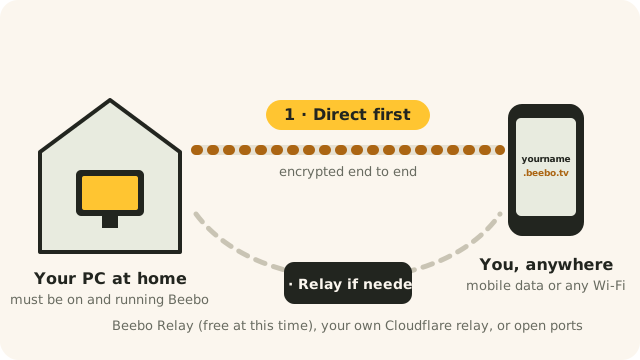
Your free yourname.beebo.tv address switches itself on a few seconds after Beebo starts. You’ll find it, with a QR code, on the Get Started screen.
To choose a different name, open Settings → Your Beebo address. Not sure your internet allows it? Run the check on this computer, with your phone.
No app needed away from home. Open your address in any browser, sign in, and your whole library is there.
Want an icon? On Android in Chrome, tap the ⋮ menu, then Add to Home screen (or Install app). On iPhone or iPad, use Safari: tap Share, then Add to Home Screen.
On Apple devices this is how you watch for now. A native iPhone and iPad app is in development: it is not published and has not been tested on a real device. The only thing you miss is offline downloads, which need the Android app.